For people who write SaaS help guides

Just an image.
Editable anytime.

Add boxes, numbers and notes to the screenshots in your guides. Harie saves a regular JPEG or PNG you can paste anywhere, and when you open it in Harie, every box and caption is still editable.

Free and open source (MIT). No install, no account. The editor is available in English and Japanese.

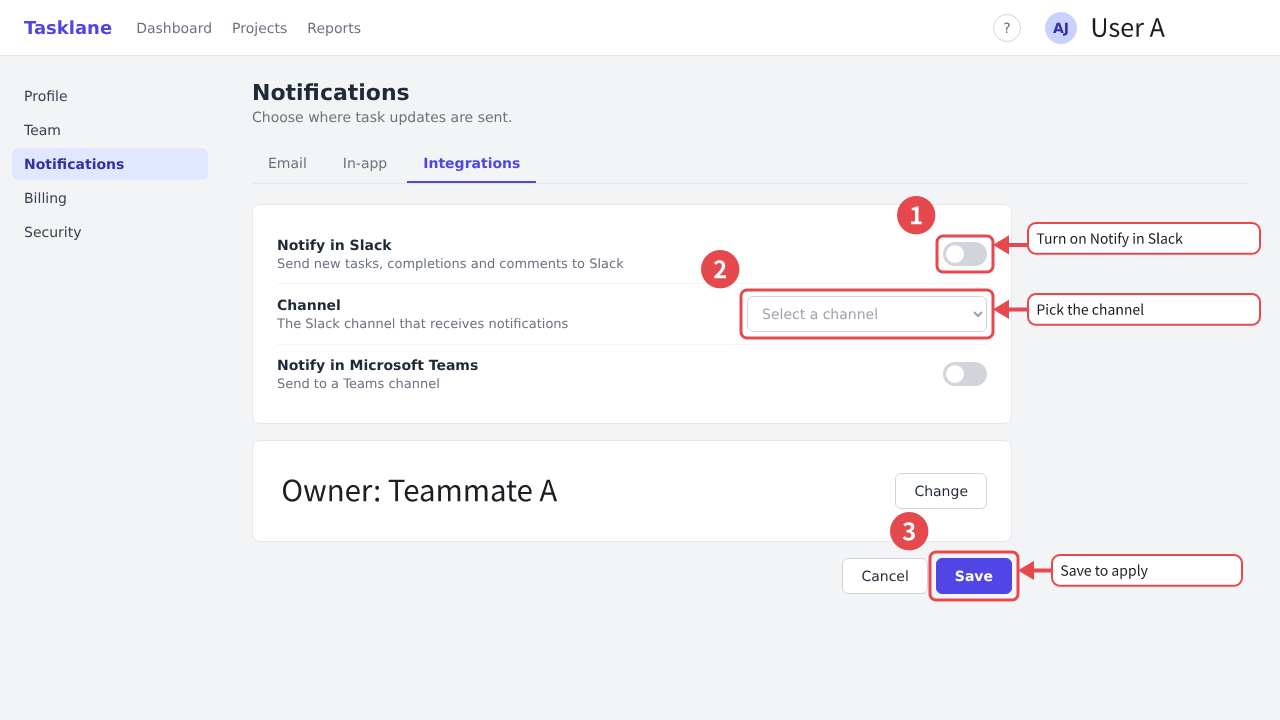
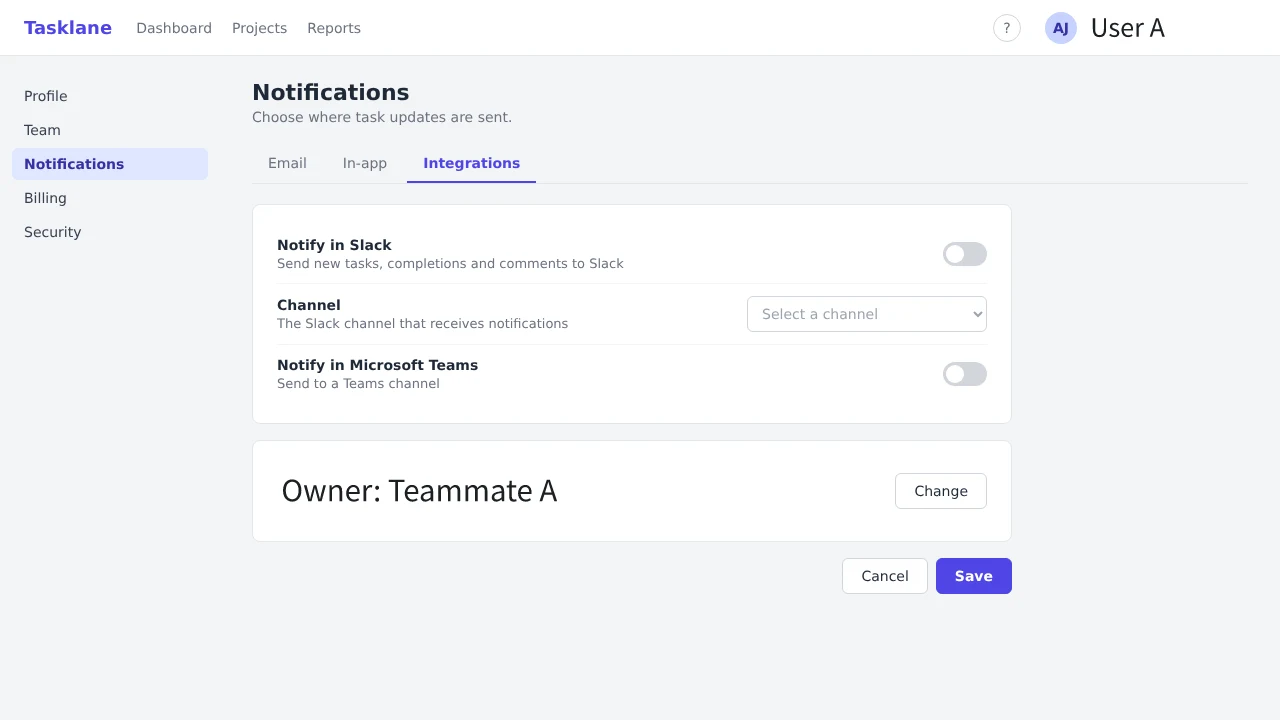
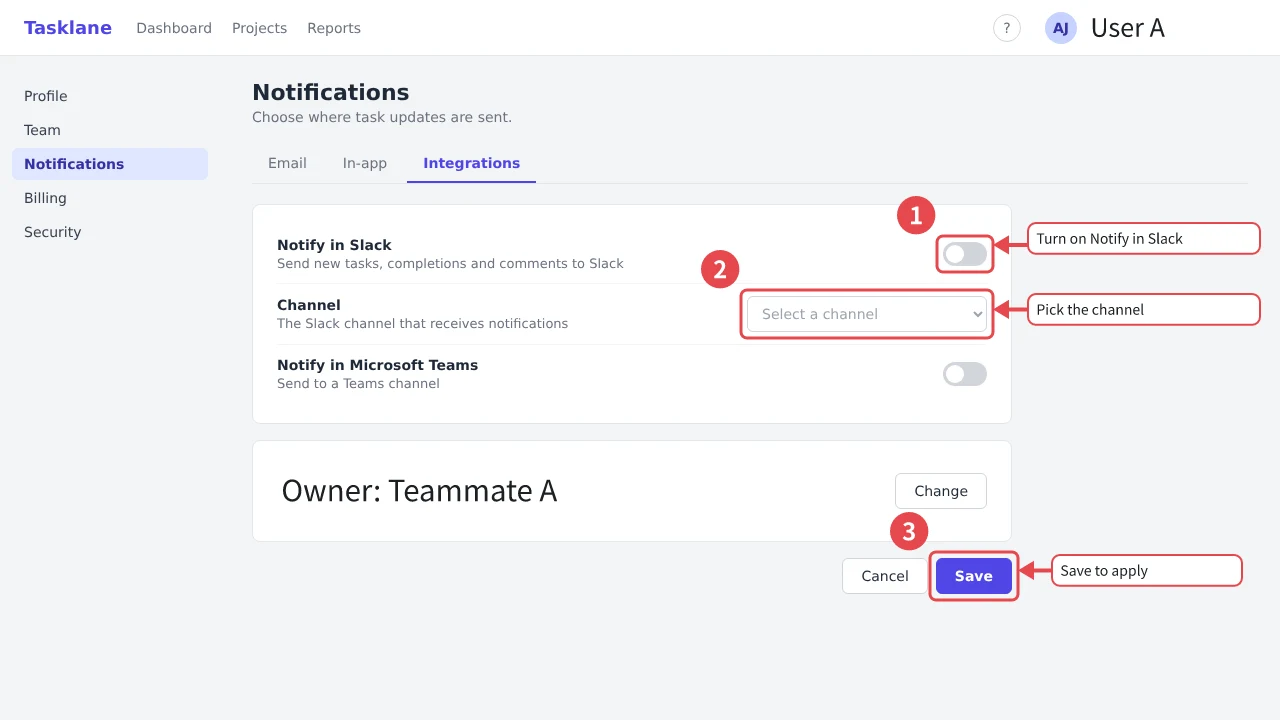
Screenshot of the notification settings page of Tasklane, a fictional SaaS The same screen with three numbered red boxes and callouts
It's the same single file

Guide screenshots take more work than they should.

  • Deciding what to highlight, every timeAnd everyone on the team writes it differently.
  • The same steps for every imageCapture, open, annotate, export. Repeat.
  • One label changes, the image is redoneA renamed button means rebuilding the screenshot.
  • Can't fix a teammate's imageNobody knows where the source file went.
  • Customer data on screenReal names and emails show up on production screens.

Capture. Annotate. Keep.

One tool from capture to saved file.

  1. Capture

    Grab the page you're on with the Chrome extension and open it straight in the editor. Capture the visible area, a region you drag, or a single element like a button.

  2. Annotate

    Boxes, arrows, numbers, callouts and spotlights. Describe what you want to explain and AI drafts numbered boxes and captions.

  3. Keep

    Save as a regular JPEG or PNG. Paste it into your help center as is, and anyone who opens it later can still edit the annotations.

How it stays editable

One image holds the original screen and the annotations.

An image saved by Harie carries the original screenshot and the annotation data alongside the picture you see. Other apps and browsers simply show a normal image.

Open it in Harie and you can move or rewrite every box and caption, one by one. There's no separate project file to keep track of. Whoever receives the image can open it and fix it.

Saving again never recompresses the original screenshot, so quality holds up however many times you edit. The file format spec is public (in Japanese).

tasklane-notifications.en.harie.png 147 KB
Image for viewingShows in any app
Original screenshotNever recompressed
Annotation data3 boxes · 3 numbers · 3 callouts
Download this sample and open it in the editor to edit its annotations.
Ways to make guide screenshots
Export from an image editor Guide-builder service Harie
Paste straight into your help center Yes Export from the service Yes
Edit the text after it's published If you still have the project file Inside the service Yes, just open the image
Editable by someone other than the author If you hand over the project file Members on the same plan Yes, just send the image
No account or subscription Depends on the tool Required Yes

AI

Decide where and what, with AI.

Suggested annotations

Write something like "Explain how to set up Slack notifications" and AI drafts where the boxes go and what they say. Accept, reject or edit each suggestion. On screenshots from the Chrome extension, boxes line up with the page's actual elements.

Uses your own Anthropic API key. Harie asks before sending an image, and the key stays in this browser.


Edit from Claude (MCP)

Register the @harie/mcp server, then just ask Claude Code or Claude Desktop to add or fix annotations. When UI text changes, you can update many images in one go.

In the notifications image under guides, change "Save to apply" to "Update to apply"

harie_open → harie_edit

Updated callout 3 and saved the file.

Personal data

Remove personal data, keep the meaning.

Replace names, email addresses and phone numbers with dummy values. Readers can still tell what kind of screen it is, which blurring can't do. Fill, mosaic and blur are available too.

Masking is applied to the original image itself and can't be undone. When you share the file, the original values aren't hiding inside it.

Before The owner field shows a fictional name and email address
After The owner field is replaced with the dummy value Teammate A
The sample screen, names and addresses are all fictional.

Works where you work.

Same file and same look, wherever you save it.

Web

Available now

Just open it in your browser. Images are processed in the browser and never sent to a server. Works offline. Switch the interface between English and Japanese in Settings.

Open the editor

Chrome extension

Store listing coming

Capture the page you're on and annotate it right away. For now, build it from source and load it.

How to install

Desktop

Downloads coming

macOS and Windows. Open files from the system dialog and save them in place.

About the desktop app

MCP

Available now

Let AI agents like Claude read and write the images in a folder you choose.

How to set it up

Getting started with MCP

Ask Claude to annotate for you.

Register the @harie/mcp server and Claude Code or Claude Desktop can open Harie images, add annotations and fix them.

  1. Install Node.js 22 or later

    The server runs from npm with npx, so there is nothing else to install. Check your version with node -v.

  2. Register it in your app

    Point --root at the folder that holds your images. The server can only read and write inside that folder.

    Claude Code

    claude mcp add harie -- npx -y @harie/mcp --root ~/Pictures/guides

    Claude Desktop

    Add this to claude_desktop_config.json and restart Claude Desktop. Replace the folder with your own path.

    {
      "mcpServers": {
        "harie": {
          "command": "npx",
          "args": ["-y", "@harie/mcp", "--root", "/Users/you/Pictures/guides"]
        }
      }
    }
  3. Try a request

    • "Turn settings.png into a Harie file, put a red box around the Save button and add a callout that says Save here"
    • "In the images under guides, replace any visible email addresses with dummy values"

    Masking personal data can't be undone, so the server only saves it after an explicit confirmation.

    Full tool list and usage (GitHub)

Make your next guide editable anytime.